

Starting a blog is exciting. You have plenty of ideas, you’re motivated to write, and publishing your first few articles feels surprisingly manageable.
Then something happens.
You sit down to write your next post and realize you have no idea what to publish.
Suddenly, you’re spending more time choosing a topic than actually writing.
That’s where a blog content calendar comes in.
You don’t need expensive planning software or a complicated system. Google Sheets is enough to organize your ideas, schedule articles, and track what you’ve published.
Here’s how to create a blog content calendar for free and plan your next month of posts.
Affiliate Disclosure: This article contains affiliate links. If you join Wealthy Affiliate through one of my links, I may earn a commission at no additional cost to you. I recommend only products and services I have personally used or genuinely believe will add value for my readers. All opinions expressed in this review are my own.
What Is a Blog Content Calendar?
A blog content calendar is a planning tool that organizes your upcoming articles.
It helps you track what you’re writing, when you plan to publish it, and how each post serves your readers.
Think of it as a simple roadmap for your blog.
Instead of starting every writing session wondering what to cover, you already have a topic waiting.
A content calendar can also help you spot repetitive subjects, balance different article formats, and maintain a realistic publishing routine.
The goal isn’t to publish more articles at any cost. It’s to make blogging easier to manage.
Step 1: Create Your Free Google Sheets Content Calendar
Open Google Sheets, create a blank spreadsheet, and name it something recognizable, such as Blog Content Calendar.
In the first row, add these eight column headings:
| A | Publish Date | Your planned publishing day |
| B | Working Title | The article you’re preparing |
| C | Target Keyword | Its primary search phrase |
| D | Reader Question | What the article should answer |
| E | Post Type | Guide, list, comparison, or review |
| F | Status | Your current progress |
| G | Draft Link | Where you’re writing the article |
| H | Live URL | The published article’s address |
Next, make the spreadsheet easier to navigate.
Select View → Freeze → 1 row so the headings remain visible when scrolling.
Bold the first row and widen the columns containing longer text.
That’s your basic content calendar.
You can add columns for images, affiliate disclosures, or social media later. For now, keep it simple enough that you’ll actually use it.
Step 2: Choose a Realistic Blogging Schedule
Before filling your calendar, decide how often you can publish.
For beginners, two reasonable starting options are:
- One article per week: Four posts across a four-week planning period.
- Two articles per week: Eight posts across four weeks.
Neither schedule guarantees better SEO results.
Choose based on how much time you can realistically spend researching, writing, editing, and publishing.
If you’re unsure, start with one post per week.
Consistency becomes easier when your workload matches your available time.
Enter your planned publishing dates in Column A.
You now have the foundation for your monthly schedule.
Step 3: Brainstorm Blog Post Ideas
Don’t try to find the perfect topic immediately.
Start by listing more ideas than you need.
If you’re planning four articles, brainstorm eight to ten possibilities.
Useful sources include:
- Questions your target audience regularly asks.
- Google autocomplete suggestions.
- Related questions appearing in search results.
- Comments on relevant blogs or communities.
- Problems you’ve personally researched or solved.
- Gaps in your existing articles.
Look for specific problems rather than broad topics.
For example, “Blogging” is too broad for one useful beginner article.
“How to create a blog content calendar in Google Sheets” has a clearer purpose.
Once you have your list, choose the ideas that best match your audience’s needs.
Step 4: Match Each Article to a Keyword and Reader Question
A content calendar becomes more useful when every article has a clear purpose.
In Column D, write the main question your reader wants answered.
Then add a relevant target keyword in Column C.
For example:
Working title: How to Find Blog Post Ideas for Beginners
Target keyword: Blog Post Ideas for Beginners
Reader question: Where can I find useful topics for my new blog?
Before choosing a keyword, check the search results.
Are people looking for tutorials, examples, comparisons, or product recommendations?
Your article should match that intent.
Also review whether two planned posts answer essentially the same question.
Similar keywords aren’t automatically a problem, but substantially overlapping articles may be better combined or given more distinct purposes.
Beginner tip: Don’t spend hours chasing a supposedly perfect keyword. Choose a relevant topic you can answer thoroughly and accurately.
Step 5: Plan Your First Month of Blog Posts
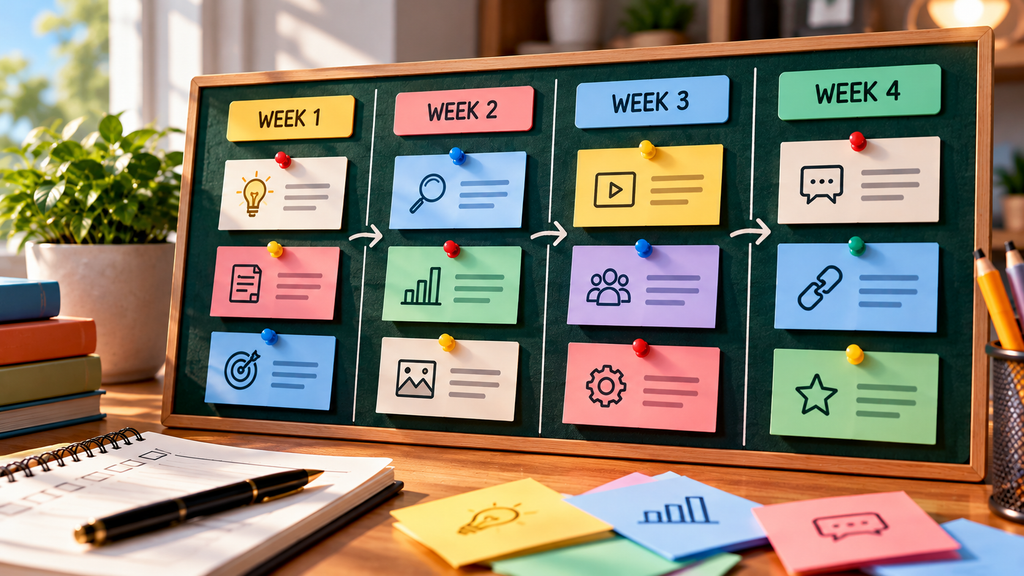
Here’s a sample four-week content calendar for a beginner blogging website.
| 1 | How to Start a Blog for Beginners | Start a Blog for Beginners | How-to |
| 2 | 15 Blog Post Ideas for New Bloggers | Blog Post Ideas for Beginners | List |
| 3 | How to Find Long-Tail Keywords for Free | Find Long-Tail Keywords for Free | Tutorial |
| 4 | Common Blogging Mistakes to Avoid | Blogging Mistakes for Beginners | Beginner guide |
This is an illustrative plan, not a list of verified low-competition keywords.
Notice how the topics build on one another.
The first introduces blogging, the second helps readers find topics, and the third explains how to research those topics.
You can connect related articles through internal links once they’re published.
Use the same approach for your niche.
If you write about personal finance, gardening, or online business, start with foundational questions before moving into more specific topics.
Step 6: Track Your Progress With Status Labels
A content calendar should show what’s happening, not just what’s planned.
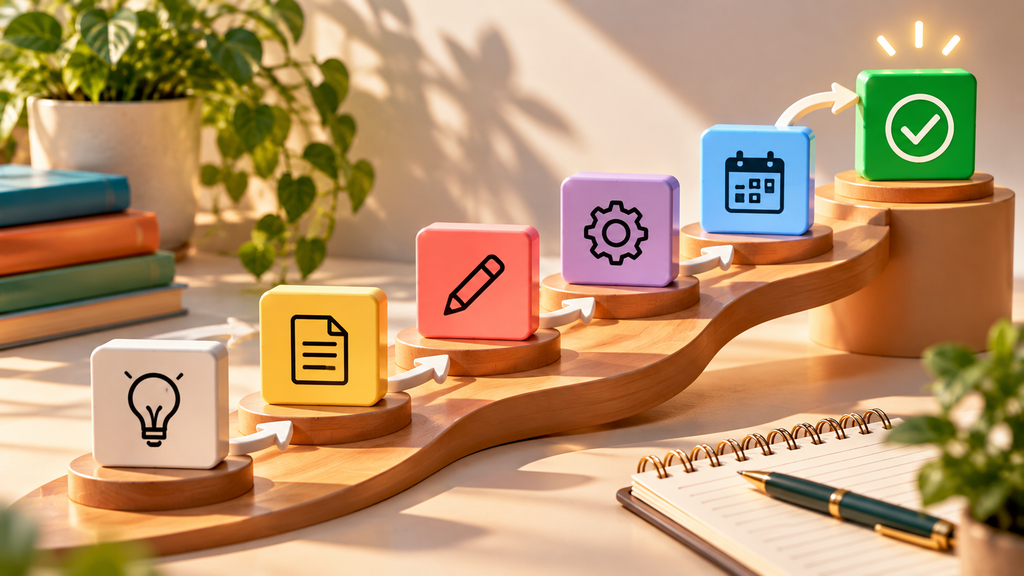
In Column F, use six simple statuses:
- Idea: Planned but not started.
- Drafting: Currently being written.
- Drafted: First draft completed.
- Editing: Reviewing facts, formatting, and images.
- Ready: Finished and scheduled.
- Live: Published.
To make these easier to manage, select the cells in your Status column and choose Insert → Dropdown.
Add the six labels as options.
You can also assign colors to each status using the dropdown settings or conditional formatting.
For example, use gray for Idea, yellow for work in progress, and green for Live.
This makes it easier to see which articles need attention.
When an article is published, paste its address into Column H.
Over time, your calendar also becomes a useful record of your blog’s content.
Step 7: Review Your Content Calendar Every Week
A content calendar isn’t meant to be a rigid schedule you never change.
Set aside about ten minutes each week to review it.
Ask yourself:
- Which articles are finished?
- Which ones need editing?
- Is next week’s topic ready?
- Did anything take longer than expected?
- Are there new reader questions worth covering?
If you miss a publishing date, move the article rather than rushing out an unfinished post.
If you’re repeatedly falling behind, reduce your planned frequency.
If you consistently finish early, consider adding another article.
Your calendar should support your writing process, not become another source of pressure.
Common Blog Content Calendar Mistakes
Even a simple spreadsheet can become unhelpful if you overcomplicate it.
Planning too many posts: An ambitious calendar isn’t useful if you can’t maintain it.
Choosing topics without understanding readers: Keywords matter, but every article should solve a genuine problem.
Ignoring search intent: A tutorial won’t necessarily satisfy someone looking for a product comparison.
Never updating statuses: An outdated calendar becomes difficult to trust.
Spending more time planning than writing: The spreadsheet should save time, not consume it.
Forgetting content updates: Leave room to refresh existing articles when information changes.
Want to improve how you choose topics? Explore EasyMonitize’s SEO for Beginners to build a stronger foundation for your content strategy.
Frequently Asked Questions
Can I create a blog content calendar for free?
Yes. Google Sheets provides the basic spreadsheet features needed to plan and track blog posts without a paid subscription.
How many blog posts should beginners publish each month?
There’s no universal number. Four well-researched articles may be more manageable than eight rushed ones. Choose a schedule you can sustain.
Does publishing consistently improve Google rankings?
A consistent schedule can help you stay organized, but publishing frequency alone doesn’t guarantee higher rankings.
Should I plan keywords before writing?
Keyword research can help you understand reader questions and search intent. However, you should also consider your audience’s needs and your ability to provide a useful answer.
Final Thoughts: Plan Your Posts, Then Focus on Writing
A good blog content calendar doesn’t need complicated formulas, expensive subscriptions, or dozens of columns.
It needs a clear schedule, useful topics, and a simple way to track progress.
Start with four posts, organize them in Google Sheets, and review your progress every week.
Once that routine feels comfortable, you can expand it.
Ready to turn your planned articles into a real blog? Read EasyMonitize’s guide to starting a blog for the next steps.