


How to Create a Content Calendar in Excel + Free Template
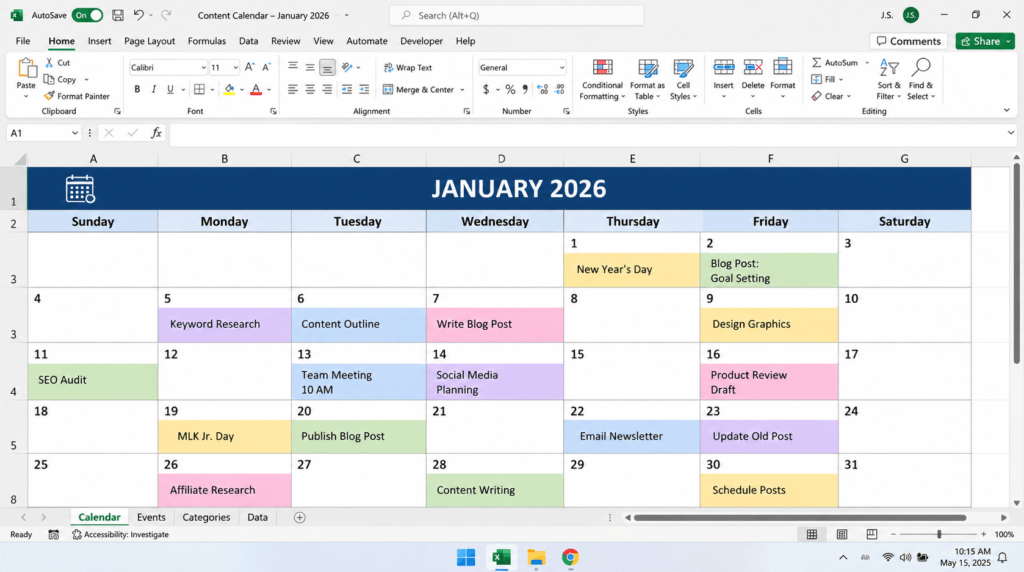
If you’ve ever sat down to work on your website and thought, “What am I supposed to write about today?”, you’re definitely not alone.
I’ve been there.
In fact, trying to find a simple way to organize my website content is what led me to create my own content calendar in Excel.
I wasn’t looking for anything complicated. I just wanted a place where I could see my content ideas, plan when I wanted to publish them, keep track of what I was working on, and look ahead at what was coming next.
I searched for different content planning tools and calendars, but I kept running into the same problem.
Some were too basic.
Others were designed around a specific workflow that didn’t really fit the way I wanted to organize my content.
And when I found options that offered more flexibility, many of the additional features were available only through upgraded or paid versions.
That’s when I started thinking:
Why not create something I can customize myself?
That’s where Excel came in.
And honestly, I think a simple content calendar can make a much bigger difference than people realize.
So I decided to create one that I could actually customize—and I made it available for you to download for free.
See the Free 2026 Excel Content Calendar →
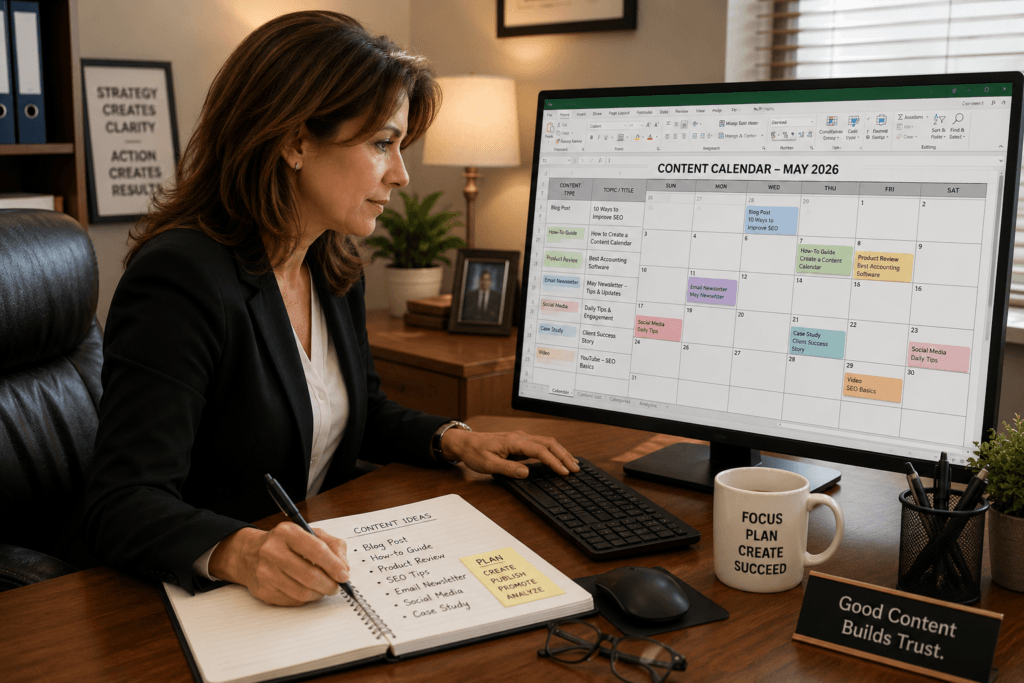
Why Do You Need a Content Calendar?
When you’re first starting a website, keeping track of content can seem pretty easy.
You might have a notebook with some ideas.
Maybe you have a list on your computer.
Maybe you’ve got a bunch of sticky notes.
Or maybe, like me, you’ve got ideas scattered in several different places.
That can work when you only have a handful of ideas.
But as your website grows, so does the amount of information you’re trying to keep track of.
You may have:
- Blog post ideas
- Keywords you’ve researched
- Articles you’re currently writing
- Articles waiting to be published
- Product reviews
- Comparison articles
- How-to posts
- Seasonal content
- Social media ideas
- Email content
- Content updates
- Affiliate marketing topics
- Website projects
Before long, that simple list can become overwhelming.
A content calendar gives all those ideas a home.
Instead of simply asking yourself what you should work on next, you can look at your calendar and have a plan.
If you’re still working on the basics of building a website, it’s also helpful to have a clear understanding of how blogging and content fit into an online business. That’s one of the areas where having a written content plan can make the entire process feel much more manageable.
What Is a Content Calendar?

A content calendar is a schedule that helps you plan, organize, and track the content you’re going to create and publish.
It can be as simple as a monthly calendar with article titles written on specific dates.
Or it can be much more detailed, including keywords, categories, content status, deadlines, notes, and other information.
There’s no single “right” way to create one.
That’s actually one of the reasons I like using Excel.
You can build the calendar around your needs.
A blogger might use a content calendar to schedule blog posts.
An affiliate marketer might use one to organize product reviews and informational articles.
A small business owner might use one for blog posts, email newsletters, and social media.
A content creator might use one to manage videos, posts, and other projects.
The basic idea is the same:
Take your content ideas and turn them into an organized plan.
Why I Chose Excel for My Content Calendar
After looking at different content planning tools, I kept coming back to something I already had: Excel.
One of the biggest reasons was simple.
Excel is free if you already have access to it, and it is incredibly customizable.
There are plenty of calendar, project-management, and content-planning tools available. Some of them are excellent, and if you’ve found one that works for you, that’s great.
But I found that many of the options were designed around someone else’s idea of how I should organize my content.
And that’s where I kept running into a problem.
I wanted to be able to change things.
I wanted to add columns.
I wanted to create my own categories.
I wanted to track keywords.
I wanted to add notes.
I wanted to change the way my calendar looked.
I wanted to organize my content according to the way I work.
Some of the free options I found were simply too limited for what I wanted.
They might give you a basic calendar, but once you start wanting additional features or more flexibility, you can find yourself looking at upgraded versions, paid plans, or more expensive software.
And there’s nothing wrong with that.
Companies have to charge for the software and services they provide.
But if you’re building a website or online business, especially when you’re getting started, I don’t think you necessarily need another monthly expense just to organize your content.
That’s one of the things I like about Excel.
You can start with a basic spreadsheet and build it into something that fits your needs.
Want a keyword column?
Add one.
Want a content status?
Add one.
Want to track affiliate links?
Add one.
Want to track internal links?
Add one.
Want another worksheet for content ideas?
Create one.
Want to change the colors?
Go ahead.
You control the spreadsheet.
For anyone building an affiliate marketing website, this flexibility can be especially useful because your content strategy may change as you learn more about SEO, keyword research, affiliate marketing, and your audience.
Free Doesn’t Have to Mean Basic
I think sometimes we assume that if something is free, it must be limited.
Excel is a good example of why that isn’t necessarily true.
A basic spreadsheet can be incredibly simple.
But once you start using formulas, dropdown menus, conditional formatting, filters, tables, hyperlinks, and multiple worksheets, you can create a surprisingly powerful planning system.
And you don’t have to add all those features at once.
That’s another thing I like about Excel.
Start simple. Customize it. Add features when you actually need them.
You don’t have to pay for the most expensive content-planning platform just to have a calendar that works for you.
Download My Free Excel Content Calendar
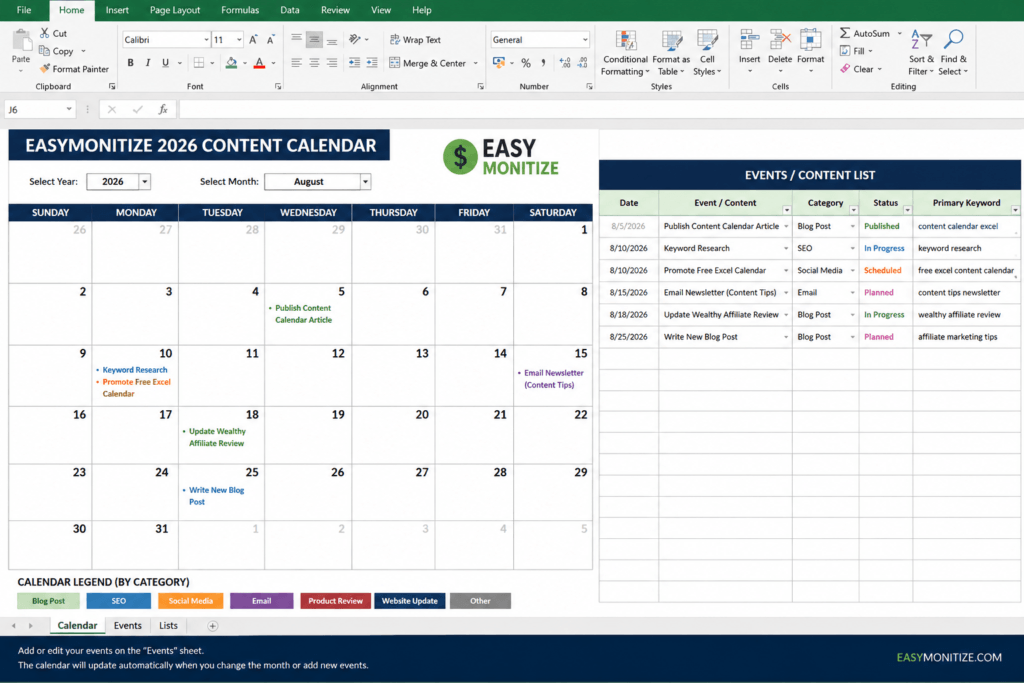
If you don’t want to spend the time building a content calendar from scratch, I’ve created a free downloadable Excel calendar with events that you can use as a starting point.
📅 Download Your Free Excel Content Calendar
DOWNLOAD MY FREE EXCEL CONTENT CALENDAR →
I created this because I wanted something that was:
- Free to use
- Easy to customize
- Flexible enough for different types of websites
- Useful for content planning
- Simple enough for someone who isn’t an Excel expert
- Not dependent on additional paid features for basic customization
The calendar includes a monthly calendar view and a separate Events worksheet where you can enter your content and other activities.
You can use it for:
- Blog posts
- Content ideas
- Keywords
- Publishing deadlines
- Product reviews
- Social media content
- Email newsletters
- Website tasks
- Content updates
- Future article ideas
And because it’s Excel, you’re not stuck with the way I’ve designed it.
Change it. Add to it. Take things away. Make it yours.
That’s the whole point.
If you’re ready to stop keeping your content ideas in five different places, download the free Excel content calendar and start putting your ideas on the calendar.
How to Create Your Own Content Calendar in Excel
If you’d rather create your own calendar from scratch, you can.
You don’t have to be an Excel expert.
Let’s walk through the basic process.
Step 1: Decide What You Want to Track
Before opening Excel, think about what you’re actually trying to organize.
For a website, I recommend starting with your content.
You might want to track:
- Article title
- Primary keyword
- Secondary keywords
- Content category
- Content type
- Status
- Target publish date
- Notes
- Internal linking opportunities
Don’t add 25 different columns just because you can.
Start with the information you’ll actually use.
You can always add more later.
If you’re still developing your website’s overall content strategy, this is also a good time to think about your main website categories and content pillars.
Step 2: Create Your Calendar Worksheet
Open a new Excel workbook.
Create a worksheet called Calendar.
At the top, create fields for the year and month.
Then create a seven-column calendar.
Your columns might look like this:
| Sunday | Monday | Tuesday | Wednesday | Thursday | Friday | Saturday |
|---|
Leave enough room in each day for the content you plan to schedule.
This becomes your visual calendar.
Step 3: Automatically Generate the Dates
This is where Excel starts doing some of the work for you.
You can use Excel’s DATE and WEEKDAY functions to automatically calculate calendar dates.
For example:
=DATE(2026,8,1)
creates August 1, 2026.
The WEEKDAY function can determine which day of the week a particular date falls on:
=WEEKDAY(DATE(2026,8,1),1)
You can combine formulas like these to automatically populate your calendar.
The advantage is that you don’t have to manually change every date when you move from one month to another.
Step 4: Create a Month Selector
Now let’s make your calendar dynamic.
Create a cell where you can select the month.
You could enter the month number manually:
8 = August
9 = September
10 = October
Or you can create a dropdown list using Excel’s Data Validation feature.
To create a dropdown:
- Select the cell where you want the month selector.
- Go to Data.
- Select Data Validation.
- Choose List.
- Enter the months you want available.
- Click OK.
Now you can select a month instead of typing it.
You can create a similar selector for the year.
Step 5: Create an Events or Content List
This is an important part of the system.
Create another worksheet called Events or Content List.
This is where you keep the details behind the calendar.
For example:
| Date | Article | Category | Status | Keyword | Notes |
| 8/12/26 | How to Start a Blog | Blogging | Planned | how to start a blog | Create outline |
| 8/15/26 | Best Blogging Tools | Tools | Writing | blogging tools | Add comparisons |
| 8/19/26 | How to Make Money Blogging | Monetization | Planned | make money blogging | Research examples |
Your calendar becomes the visual schedule.
Your Events worksheet becomes the detailed information behind that schedule.
I really like this approach because you don’t have to cram everything into a tiny calendar square.
Step 6: Add Content Categories
Create a category column for your content.
Your categories will depend on your website.
For example, a website about online business might use:
- Blogging
- Affiliate Marketing
- SEO
- Online Business
- Product Reviews
- Content Marketing
- Social Media
- Email Marketing
A food blog would obviously use completely different categories.
The point is to create categories that make sense for your website.
You can also use Excel’s Data Validation feature to create a dropdown list for your categories.
This is where your website categories become important. If you’ve already created category pages for your site, your content calendar can mirror those categories so that your planning system and website structure stay organized together.
Step 7: Add a Content Status
A status column is another feature I recommend.
You could use:
- Idea
- Planned
- Researching
- Writing
- Editing
- Scheduled
- Published
- Update Needed
This lets you quickly see where each piece of content stands.
You can even use conditional formatting to automatically change the color based on the status.
Step 8: Add Your Keywords
If you’re using your content calendar for SEO, I strongly recommend tracking your keywords.
For each article, record the primary keyword you’re targeting.
You can also include secondary keywords or related topics.
For example:
Article: How to Start Affiliate Marketing
Primary Keyword: affiliate marketing for beginners
Secondary Keywords:
- how affiliate marketing works
- beginner affiliate marketing
- how to become an affiliate marketer
Now your calendar isn’t just telling you what to write.
It’s helping you remember why you’re writing it and what search term you’re targeting.
If you’re still getting comfortable with SEO and keyword research, keeping your keyword information right beside your content schedule can make the process much easier to manage.
How a Content Calendar Helps With SEO
Content calendar → keyword → article → internal links → pillar page → supporting content
A content calendar isn’t just a scheduling tool. When you combine it with keyword research, content categories, pillar pages, and internal links, it becomes part of your overall SEO strategy.
Step 9: Schedule Your Content
Now comes the part that makes the calendar really useful.
Put your content on specific dates.
But don’t make your schedule unrealistic.
If you can comfortably write one article a week, schedule one.
If you can write three articles a week, schedule three.
The important thing is to create a schedule you can actually maintain.
I’d much rather have someone consistently publish one quality article a week than create a calendar with seven articles every week and become overwhelmed after two weeks.
💡 My Biggest Content Calendar Tip
Your content calendar should help you stay consistent—not make you feel guilty.
Start with a schedule you can actually maintain. One quality article every week is better than creating an unrealistic schedule that leaves you overwhelmed.
Step 10: Use Color Coding
Color coding can make your calendar much easier to understand.
For example:
Blue: Planned
Yellow: In Progress
Green: Published
Red: Needs Attention
You could also use different colors for different content categories.
But here’s my advice:
Don’t overdo it.
If everything has a different color, nothing really stands out anymore.
Use color to make important information easier to find.
Step 11: Add Conditional Formatting
Conditional formatting is one of my favorite Excel features for content planning.
It allows Excel to automatically change a cell’s formatting when certain conditions are met.
You could use it to highlight:
- Today’s date
- Upcoming deadlines
- Overdue content
- Published articles
- Content that still needs editing
Once you’ve set it up, Excel does the highlighting for you.
Step 12: Test Your Calendar
Before you start relying on your calendar, test it.
Change the month.
Change the year.
Add an event.
Add multiple events to the same day.
Change an article from “Planned” to “Published.”
Make sure everything updates the way you expect.
Once you’re happy with it, save the workbook as a template.
Then you can reuse it for future years or even different websites.
How to Use Your Content Calendar
Creating the calendar is only half the job.
The real value comes from actually using it.
I recommend reviewing your calendar at least once a week.
Look Back
Ask yourself:
- What did I accomplish?
- Which articles were published?
- What didn’t get finished?
- Did anything unexpected come up?
Look Ahead
Then look at the coming week.
What content is scheduled?
Are your deadlines realistic?
Do you need to move anything?
Choose Your Next Priority
This is one of the biggest benefits of having a content calendar.
When you sit down to work, you don’t have to spend the first 30 minutes deciding what to do.
You already have a plan.
You can simply look at your calendar and say:
“This is what I’m working on today.”
That may sound like a small thing, but eliminating that daily decision can make it much easier to stay consistent.
Use Your Content Calendar to Build a Content Strategy

A content calendar shouldn’t just be a place to randomly assign blog posts to dates.
You can use it to start thinking about your overall content strategy.
Let’s say your website is about affiliate marketing.
You might start with a broad topic:
What Is Affiliate Marketing?
Then create supporting articles such as:
- How Does Affiliate Marketing Work?
- Affiliate Marketing for Beginners
- How to Choose an Affiliate Program
- How to Write an Affiliate Product Review
- Best Affiliate Programs for Beginners
- Common Affiliate Marketing Mistakes
Now you’re creating a group of related articles rather than a collection of completely unrelated posts.
That can make it easier to build internal links and create useful content pathways for your readers.
If you’re building an affiliate marketing website, this is also where a well-planned pillar page and supporting content can really help.
If you’re learning affiliate marketing through a platform such as Wealthy Affiliate, a content calendar can also help you put your training into action by turning what you’re learning into actual website content.
For example, your pillar page can provide a broad overview of a subject while your supporting articles answer more specific questions.
Your content calendar can then help you plan when each supporting article will be created.
Use Your Calendar to Plan Internal Links
Here’s another benefit that’s easy to overlook.
Your content calendar can help you plan your internal linking strategy.
When you create a new article, look at the articles you’ve already published.
Ask yourself:
“What other article on my website would be helpful to someone reading this?”
Then record those potential links in your notes.
You can also note future articles that should eventually link back to the new article.
As your website grows, this becomes increasingly valuable.
It’s much easier to keep track of these connections when you’re planning them as you go rather than trying to remember everything months later.
For example, if you’re writing an article about affiliate marketing and you’ve already published a detailed Wealthy Affiliate review, that review may be a natural resource to reference when you’re discussing affiliate marketing platforms.
Likewise, if you have a beginner-focused article explaining Wealthy Affiliate for beginners or the Wealthy Affiliate program explained, you can use that article when a reader needs more background.
The key is to make the link useful to the reader.
Don’t add an internal link simply because you have another article.
Add it because the reader would genuinely benefit from clicking it.
Don’t Forget to Schedule Content Updates
Your content calendar shouldn’t only contain new articles.
You should also schedule time to review older content.
Information changes.
Products change.
Affiliate programs change.
Links break.
Your opinions and knowledge change.
And sometimes you simply become a better writer.
That means an article you published six months or a year ago may be worth revisiting.
You could schedule quarterly content reviews and identify older posts that need:
- Updated information
- New affiliate links
- Better internal links
- Additional keywords
- Improved formatting
- New images
- Updated statistics
- Additional helpful information
Your website is an ongoing project.
Publishing an article doesn’t necessarily mean you’re finished with it forever.
This is especially important for product reviews and affiliate content, where information, pricing, features, and recommendations can change over time.
Use Your Calendar for More Than Blog Posts
Your content calendar doesn’t have to be limited to blog articles.
You can also use it to schedule:
- Social media posts
- Email newsletters
- YouTube videos
- Podcast episodes
- Product reviews
- Website updates
- Affiliate program research
- Keyword research
- Content refreshes
- Seasonal campaigns
- Promotions
- Business tasks
Once you have the system set up, you can adapt it to whatever you’re working on.
That’s one of the reasons I prefer a customizable tool.
I don’t have to change my entire system every time my business changes.
I can simply add another column, category, worksheet, or event type.
Don’t Make Your Content Calendar Too Complicated
This is probably one of the most important things I can tell you.
It can be tempting to keep adding features.
More columns.
More colors.
More categories.
More formulas.
More tracking.
And eventually you can spend more time maintaining the calendar than actually creating content.
Don’t do that.
Start simple.
You need:
Ideas → Keywords → Dates → Status → Content
That’s enough.
As you become comfortable with your system, add features that genuinely make your life easier.
The best content calendar isn’t necessarily the one with the most features.
It’s the one you’ll actually use.
A Simple Weekly Content Planning Routine
If you’re not sure how to incorporate your calendar into your routine, try this.
Set aside 20–30 minutes once a week.
1. Review the Previous Week
Look at what you accomplished.
Which articles were published?
Which tasks were completed?
What didn’t get finished?
2. Review the Coming Week
Look at the content you’ve scheduled.
Do you have realistic deadlines?
Are you trying to accomplish too much?
3. Make Adjustments
Move anything that needs more time.
That’s okay.
Your content calendar is a planning tool—not a judge.
4. Choose Your Priorities
Identify the most important things you need to accomplish during the upcoming week.
5. Get to Work
Now, when you sit down at your computer, you already know what you’re working on.
No staring at a blank screen wondering what to do next.
No digging through an old notebook for your article ideas.
You have a plan.
Final Thoughts: A Content Calendar Can Help You Stay Consistent
Building a website can be exciting, but it can also become overwhelming.
There are always more keywords to research, articles to write, ideas to explore, and tasks to complete.
That’s why I think a content calendar can make such a difference.
It gives you a place to take all those ideas and turn them into an actual plan.
You don’t have to create the perfect schedule.
You don’t have to know exactly what you’re going to publish six months from now.
You just need to know what you’re working on next.
Start there.
Add a few article ideas.
Choose some keywords.
Put them on your calendar.
Work through them one at a time.
Then keep going.
Because ultimately, the goal isn’t to have a beautiful spreadsheet sitting on your computer.
The goal is to use your content calendar to help you consistently build your website.
That’s why I created the downloadable Excel calendar.
I was looking for something flexible, customizable, and simple enough to actually use.
I couldn’t quite find what I was looking for, so I built one.
If you’ve been struggling with the same problem, I hope it helps you too.
Ready to Get Started?
You don’t need another complicated system.
You don’t need another expensive subscription.
You don’t need to spend hours trying to figure out what to work on next.
You just need a place to put your ideas and a plan for turning those ideas into content.
Download My Free Excel Content Calendar
If you don’t want to spend the time building a content calendar from scratch, I’ve created a free downloadable Excel calendar with events that you can use as a starting point.
📅 Download Your Free Excel Content Calendar
The calendar includes a monthly calendar view and a separate Events worksheet where you can enter your content and other activities.
DOWNLOAD THE FREE EXCEL CONTENT CALENDAR →
What You’ll Get
What’s Included in the Free Excel Calendar?
- 📅 Monthly calendar view
- 📝 Events/content planning sheet
- 🔎 Keyword tracking
- 📂 Content categories
- 📊 Content status tracking
- 📌 Notes and planning space
- 🔄 Multiple events per day
- ✏️ Customizable Excel format
Start simple. Make it yours. And most importantly, keep creating.
And remember—you don’t have to use my calendar exactly as I’ve created it.
Make it yours.
Change it.
Customize it.
Add to it.
Remove what you don’t need.
The best content planning system is the one that fits the way you work.
Now you just need to start filling it in.
Who Is This For?
Who Can Use This Content Calendar?
This free Excel content calendar can be useful if you’re:
- Building your first website
- Starting an affiliate marketing business
- A blogger trying to publish consistently
- Creating content for multiple platforms
- Running a small online business
- Managing several content projects
- Trying to organize a growing list of article ideas
About the Author
Chastity Guevara
Founder | Easy Monitize
Chastity Guevara is the founder of Easy Monitize, where she shares practical information about affiliate marketing, blogging, AI tools, passive income, side hustles, and online business.
With more than 25 years of personal experience with Melaleuca, Chastity offers a firsthand perspective on both the customer experience and the business opportunity. She joined Melaleuca while searching for a legitimate work-from-home opportunity, eventually reaching Director status and earning approximately $300 per month.
Today, she continues to value the products and is considering returning to Melaleuca as both a customer and Marketing Executive.
Her goal is to share honest experiences about online businesses, work-from-home opportunities, and products without making unrealistic promises about income or success.
Website: EasyMonitize.com
Email: Chas@easymonitize.com
Ready to build income on your own terms?
Explore Easy Monitize for practical ideas, resources, reviews, and strategies for affiliate marketing, online business, side hustles, AI tools, and more.
👉 Start Exploring Easy Monitize
Your journey starts with one step.